Knowledge Base
Categories: Manage DNS Records
How to Access the DNS Management Interface in the Control Panel
When you want to edit DNS records for your domain. This article explains how to access the DNS management interface in the control panel.
DNS Service is provided free when you purchase any Product/Service through us. In order to view the DNS Service interface, you need to search for the Product/Service you have purchased and access its Order Information interface.
To List/Search and Manage the DNS Service
- Log in to your Control Panel:
- Next, click:
- For Resellers: Products -> List All Orders.
- For Customers: Manage Orders -> List/Search Orders.
- Search for the Order for which you have activated the DNS Service.
NOTE:
For Resellers: You may search for Orders belonging to your Sub-Resellers by selecting the Include Sub-Reseller's results check box. - On the next page, you will see a list of all your Product/Service Orders bought through us. Click any domain name to reach its Overview.
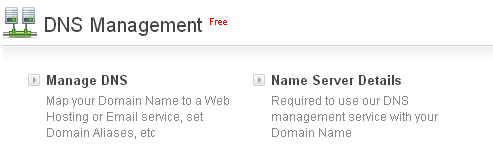
- Click the DNS Management tab. This will bring up the DNS Service interface.
Additional Information
For Resellers: You can also use the Search Bar on the Control Panel home page to bring up the DNS Service interface. This Search Bar will also be available on the topmost menu bar, in every page of the Reseller Control Panel.
For Resellers: You can also use the Search Bar on the Control Panel home page to bring up the DNS Service interface. This Search Bar will also be available on the topmost menu bar, in every page of the Reseller Control Panel.
- Provide the domain name in the search field.
- Select Order from the drop-down menu.
- Click the Search button.
- On the next page, click the DNS Management tab.
Did you find this article helpful?