How to Back Up a Server Using Acronis Cyber Backup Protection Plans
When you want to back up your VPS or Dedicated Server using automated protection plans. This article explains how to configure backups using Acronis Cyber Backup.
To take backups on the Acronis panel, you need to first create a Protection Plan. A Protection Plan is a set of rules that specify how the given data will be protected for a given VPS or Dedicated server.
A protection plan can be applied to multiple servers at any time. A server can also have multiple Protection Plans.
There are two ways to start backing up your server data:
Create a new Protection Plan
-
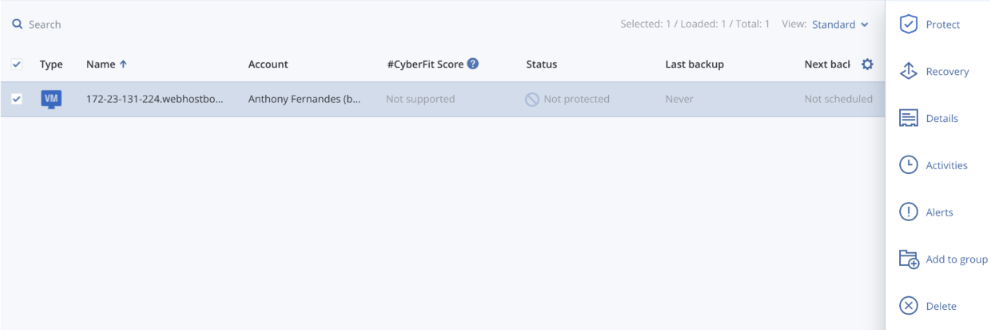
Click Devices > All Devices.
-
Select the machines that you want to back up.
-
Click Protect (If there are existing protection plans assigned to the server, they will be displayed on the panel. If no protection plan has been assigned, then the default protection plan will be displayed)
-
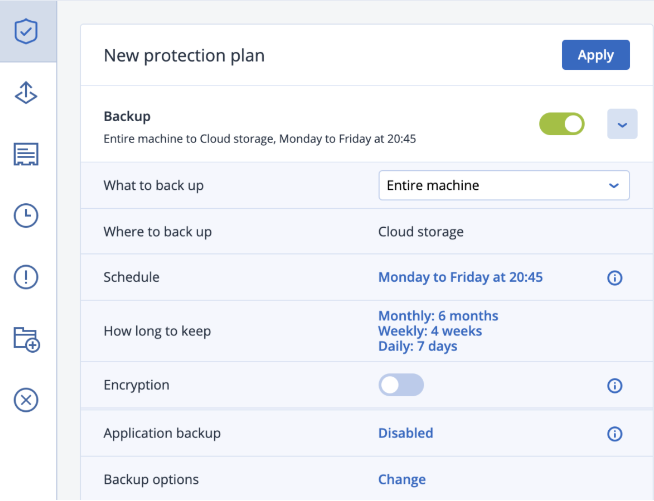
The new default plan will appear as follows:
-
You can quickly get started with your backups by clicking on Apply.
-
Alternatively, you can choose to customize your backup settings.
Field Description Our recommendation What to back up The Entire server, specific drives, or folders can be backed up. Entire Machine backup. Where to back up The backup storage location. Cloud storage (This cannot be changed) Schedule How your data gets backed up and is stored on the Cloud storage. -
Weekly full, daily incremental
-
Select all 7 days
-
Start time: 9 pm
How long to keep When to delete the older backup files. Weekly: 4 weeks
Daily: 7 days
Encryption Whether your backups are encrypted or not Turn on encryption Application backup Backup of specific applications on your server like Oracle DB and cPanel accounts. We don’t have a strong recommendation here as long as your server backup is active. Backup options Advanced backup settings. Enable alerts for failed backups. Rest can be skipped. -
-
Click Apply/Create.
-
You can also click on the Run Now option to take an instantaneous backup.
Use an existing Protection Plan
-
Select the machines that you want to back up.
-
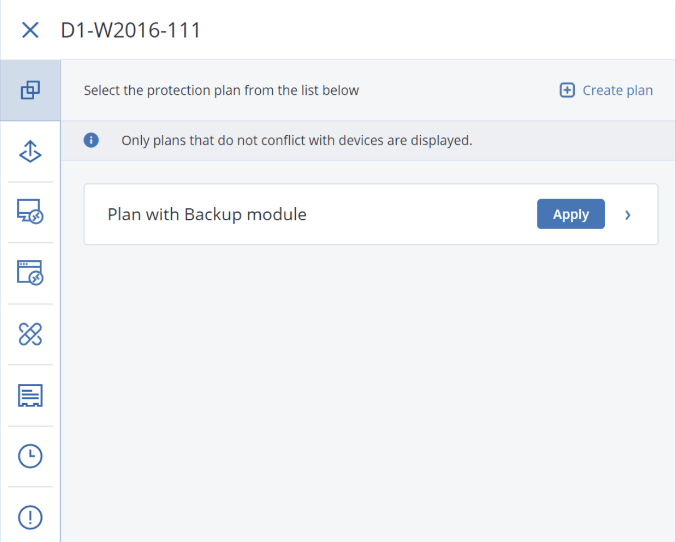
Click Protect. If a common protection plan has already been applied to the selected machines, click Add Plan. The panel displays previously created protection plans.
-
Select a protection plan to apply.
-
Click Apply.