Knowledge Base
Categories: cp_taxes_compliance
How to Enable EU VAT Charging in the Control Panel
When VAT must be applied to customer billing based on EU requirements. This article explains how to enable EU VAT charging in the control panel.
Follow the steps below to start charging EU VAT to your Customers and Sub-Resellers.
Step 1: Log in to your control panel.
Step 2: Navigate to the Configure Tax Rules page
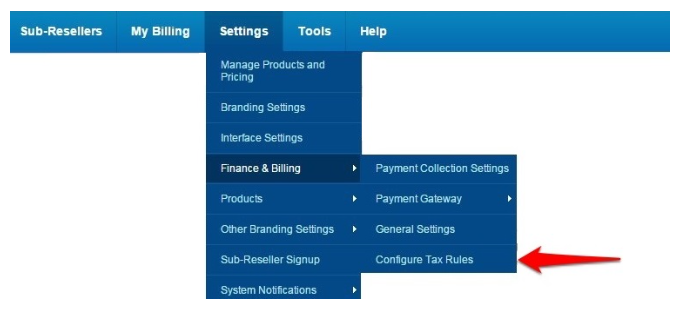
In the menu, click on Settings > Finance & Billing> Configure Tax Rules.
Step 3: Enable EU VAT
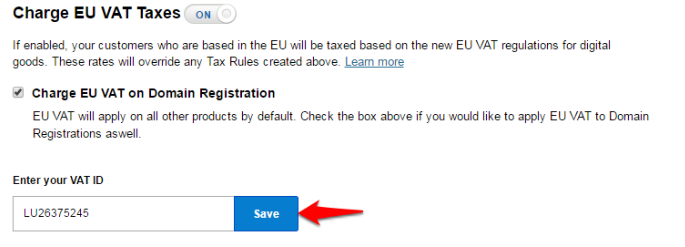
- Click on the ON / OFF toggle next to Charge EU VAT Taxes.
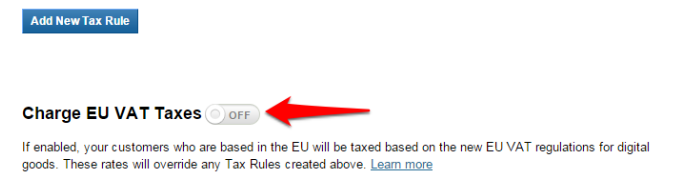
- Click on Yes, enable EU VAT button to confirm. If you wish to charge EU VAT on Domain Registration as well, click on the check box next to Charge EU VAT on Domain Registration.
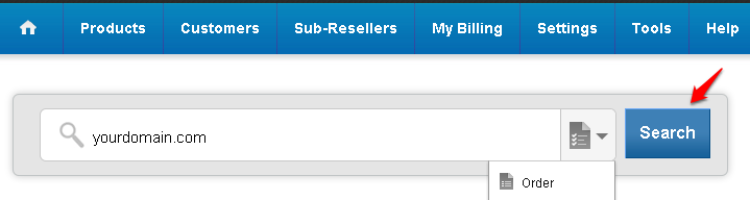
- Optionally, you can enter your VAT ID by clicking on edit.
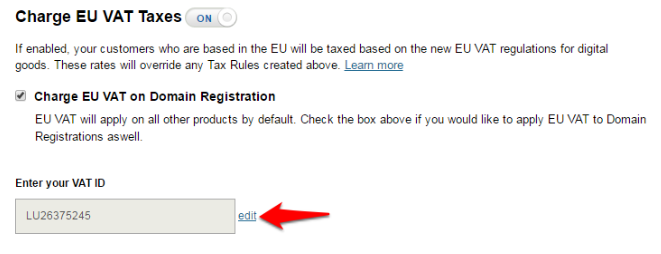
- Click on Save to save your VAT ID.
Note
EU VAT will be applicable in conjunction with any Tax Rules you have added in your Reseller account. If you have manually added any tax rules for charging EU VAT, you should disable them to avoid charging your customers in excess.