How to Enable SSH Access for Cloud Hosting
When you need command-line access for your Cloud Hosting account. This article explains how to enable SSH access for Cloud Hosting.
SSH (Secure Shell) is a secure way to connect and administer Linux servers. With an SSH connection you can securely transfer files to your servers, monitor disk usage, setup a cronjob and perform many more operations.
In order to use SSH, you need to:
- Enable SSH from your Control Panel
- Connect to the Server with a Username, Password, and an IP address
Enable SSH
Step 1: Log in to your control panel.
Step 2: Navigate to the Order Information view.
Type the Domain Name of the order in the search field on the homepage, select Order from the drop-down, and click on Search.
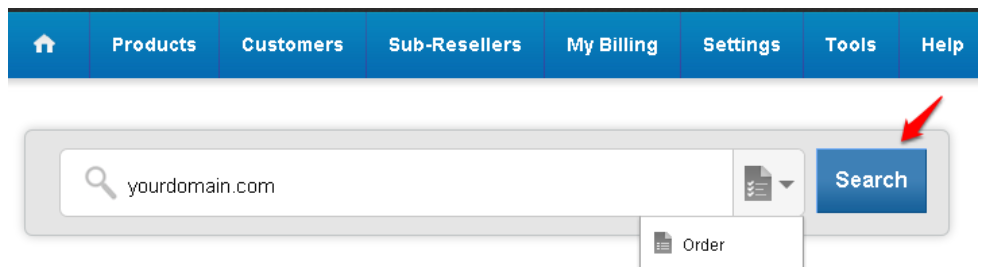
Step 3: Enable SSH Access
Click on the Shell Access link.
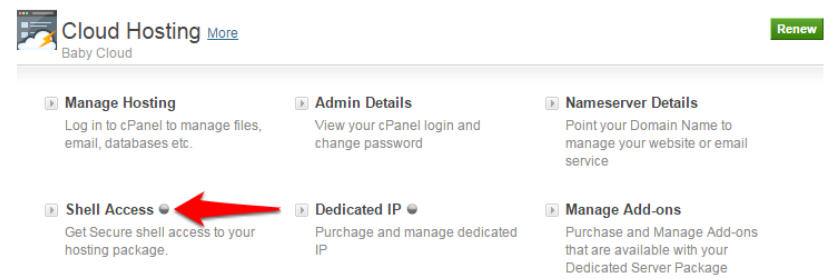
Click on Enable Now.
Connect to the Server
Windows OS
- Download any SSH client like WinSCP or PuTTY.
- Enter your IP address and the port number 2222
- Log in with your cPanel username and password.
Linux OS
To connect to Cloud Hosting via SSH, run the following command from a terminal:
Replace cpanelusr with your username, and replace ip.add.re.ss with your IP address
Mac OS
To connect to the server via SSH, run the following command from a terminal:
Replace cpanelusr with your username, and replace ip.add.re.ss with your IP address.