How to Install an SSL Certificate on a Server
When you need to manually install an issued SSL certificate. This article explains how to install an SSL certificate on a server.
After your SSL Certificate is issued, it will be available in your control panel. You can locate and install it by following the steps below.
Locate your SSL Certificate
Step 1: Log in to your control panel.
Step 2: Navigate to the Order Information view.
Type the Domain Name of the Order in the search field on the homepage, select Order from the drop-down, and click on the Search button.
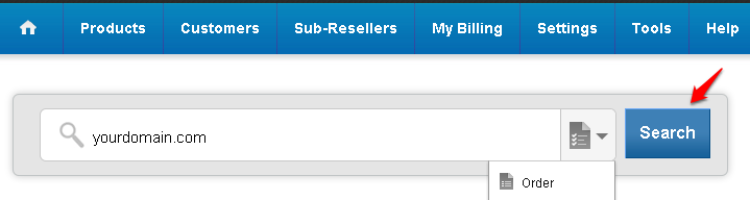
Step 3: Retrieve your SSL Certificate.
In the Order Information view, click on View certificate details.
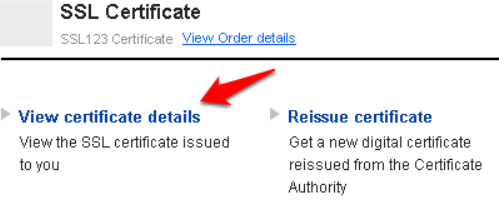
A pop-up will display your certificate as shown below:
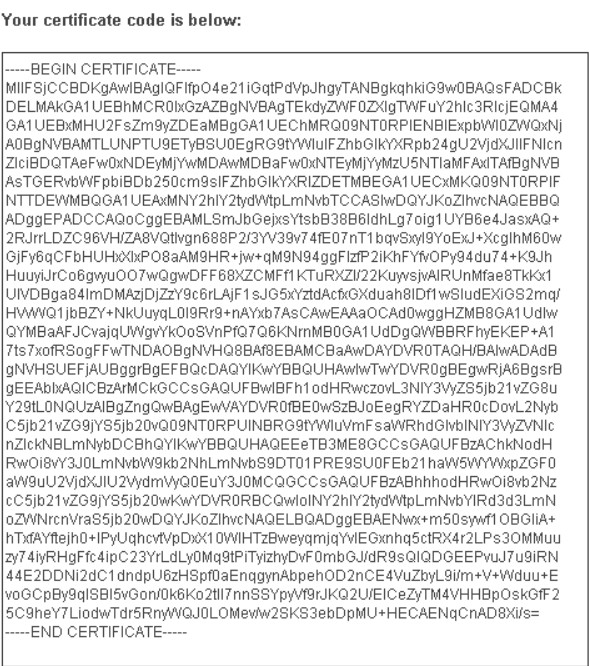
Install your SSL Certificate
Depending upon the web server where you intend to install your SSL Certificate, you need to refer to the appropriate instructions below:
Search for the article below:
- Cpanel
- Plesk
- Microsoft IIS 5.x & 6.x
- Microsoft IIS 7.x
- Apache
- NGINX
- OS X Lion (10.7) Server
- Others
Important
In order to install your SSL Certificate, you will also need the SSL Certificate of the Certificate Authority (i.e, the CA bundle). The CA bundle contains root and intermediate certificates of the CA and is available for download from here.