Knowledge Base
How to Restore Server Data from Acronis Cyber Backup
When you want to recover server data from backups. This article explains how to restore files, folders, or full server data using Acronis Cyber Backup.
You can easily recover your data from the Acronis panel with a few clicks.
However, knowing what exactly you want to recover and how is important.
You will have a few options in front of you:
- Recover full server.
- Recover to same server.
- Recover to the exact location.
- Recover to the new location.
- Recover to another server.
- Recover to the exact location.
- Recover to the new location.
- Download full server backup contents.
- Recover to same server.
- Recover specific files or folders.
- Recover to the exact location.
- Recover to the new location.
- Download specific files or folders.
Steps to access all these options:
- Click Devices > All Devices
- Select the server whose backups you wish to restore.
- Select the recovery point from which you want to restore. You will see a screen such as the one below.
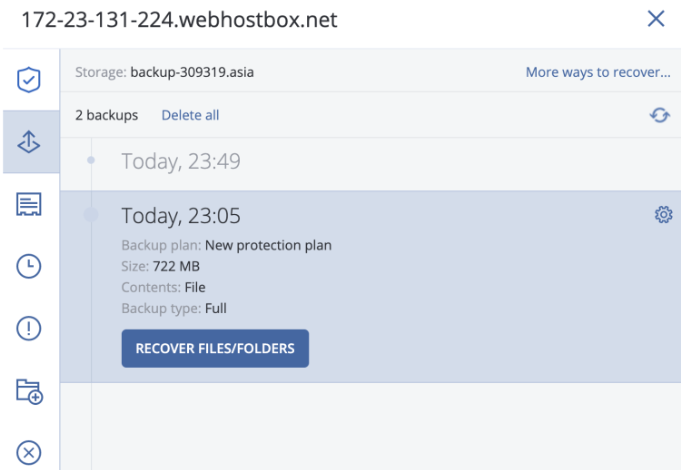
- Clicking on More ways to restore will give you options to restore to another server, or to download the backed-up contents to your local machine.
- Click on Recover Files/Folders to access the panel that will show all the files and folders in this recovery point.
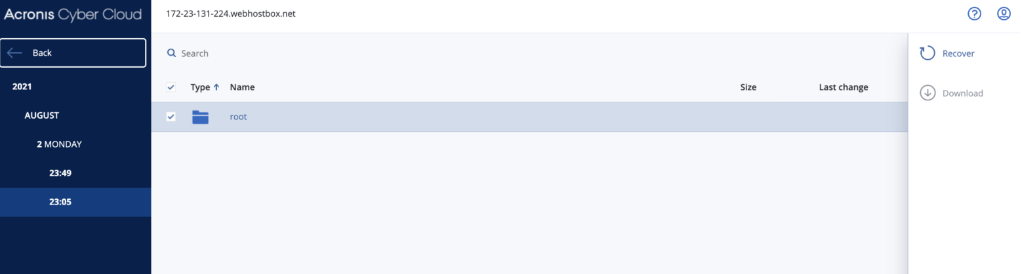
- You will see a screen such as the one below (in this example, we are looking at a recovery point of a Linux server that has been backed up fully).
- You can either choose to restore the entire root folder or double-click on the root folder to expose its subfolders and files.
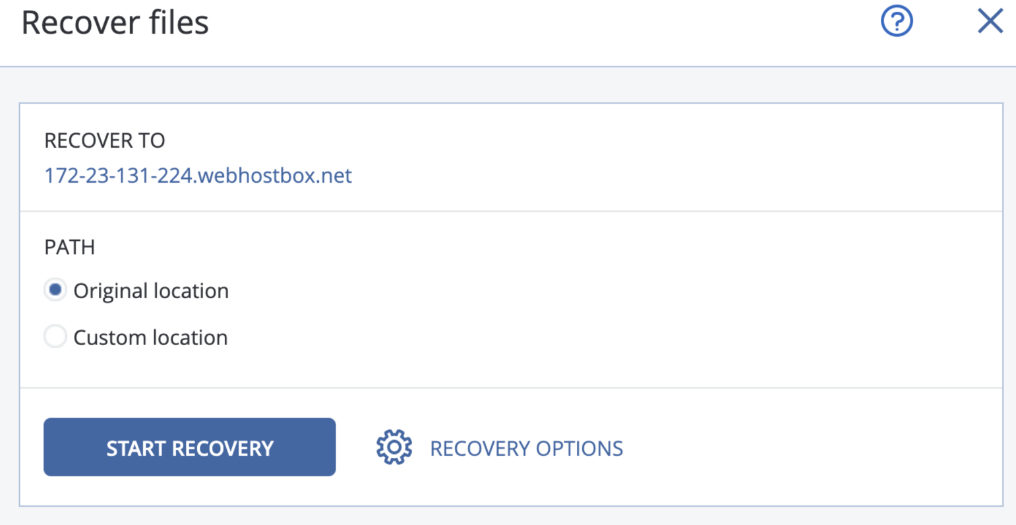
- Depending on your requirement, you can choose to restore any part of this recovery point.
- After having made a choice about the part you wish to restore, you can choose to either restore it to the original location or to a location of your choice.
Did you find this article helpful?