How to Set Up Enterprise Email on iPhone Using Exchange ActiveSync
When you want to set up Enterprise Email on your iPhone using Exchange ActiveSync. This article explains how to configure the account on iOS using Exchange settings.
Your Enterprise Email Account can be set up on iPhones or iPads' iOS7 by referring to the process:
This configuration also synchronizes your contacts from the webmail's Address Book with your iPhone's Contacts.
-
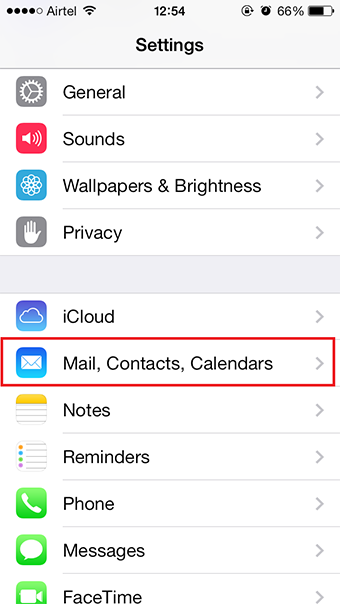
Go to your iPhone's Settings area.
-
Tap on the Mail, Contacts, Calendars option.
-
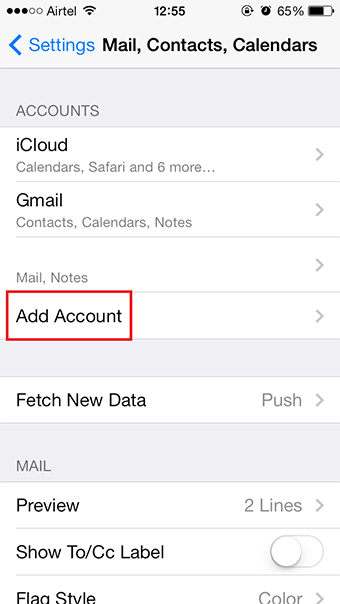
Choose Add Account.
-
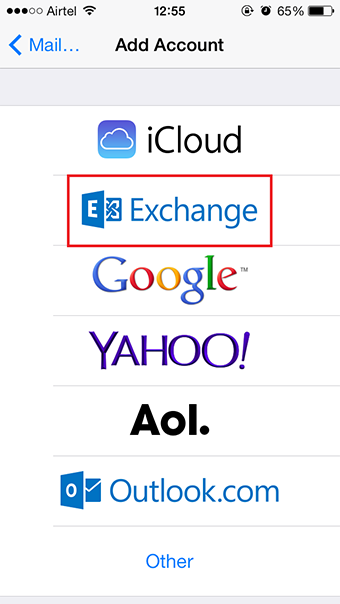
From the list of mail platforms shown, select Exchange.
-
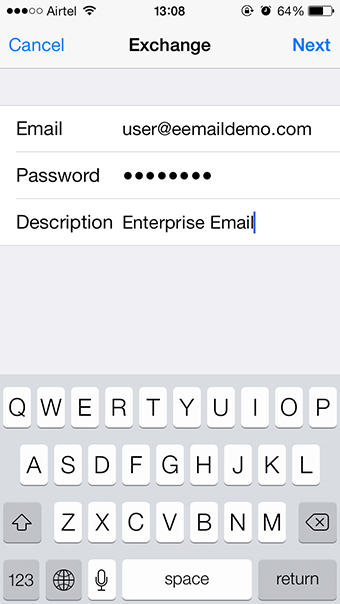
Fill in the details as mentioned below, and tap on the Next option in the top-right corner:
-
Email - Enter the complete email address for the Email Account that you wish to set up.
-
Password - Type the password of your email account.
-
Description - Enter a distinguishing description to identify it from the rest on your phone.
-
-
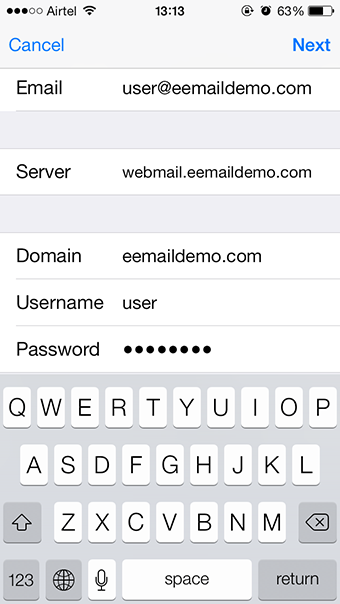
This will further prompt you to manually fill in the configuration details:
-
Email - This should be pre-filled from the previous page.
-
Server - Enter the webmail URL's FQDN here. For example, if your webmail URL is https://webmail.yourdomain.com, specify webmail.yourdomain.com as the Server.
-
Domain - Enter your domain name.
-
Username - This will be the part of your email address before the @ sign. For example, if the email address is user@yourdomain.com, mention user in this field.
-
Password - Type the password of your email account.
-
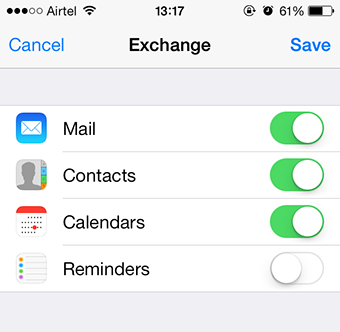
Choose the data to be synchronized - Mail, Contacts, Calendars, and/or Reminders. Only the selected options will be synchronized with the Server.
-
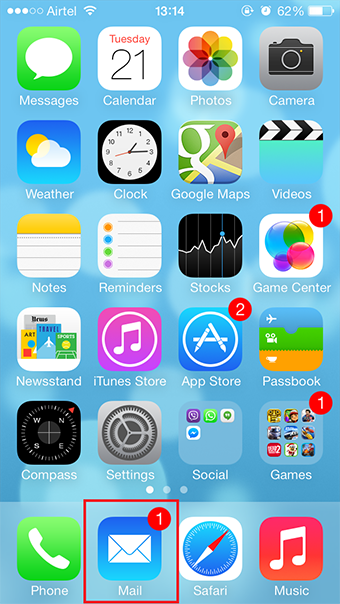
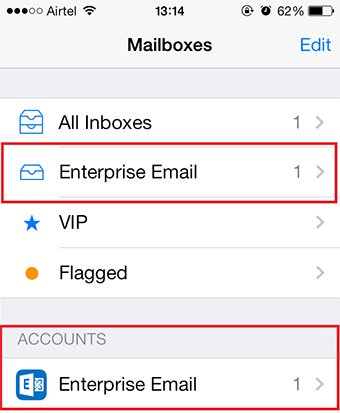
You can now access your Enterprise Email Account using the Mail option on your iPhone.
-
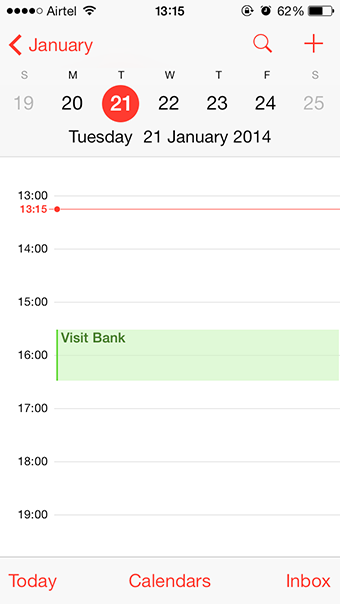
The iPhone Calendar now displays the events created through the Email Account's webmail. This also supports reverse synchronization, wherein creating an event from your iPhone will publish the information on the webmail's Calendar.