Knowledge Base
How to Transfer Files with WinSCP Over FTP
When you want to upload or download website files using an FTP client. This article explains how to transfer files with WinSCP over FTP.
To Upload Content/Files using WinSCP
- Open WinSCP.
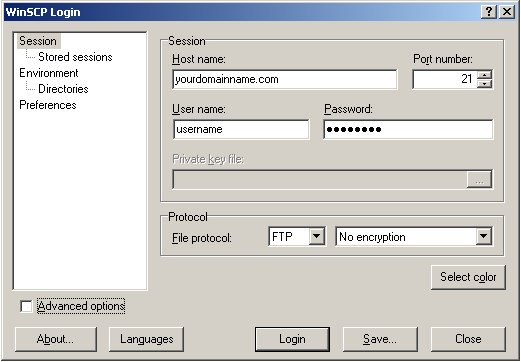
- Provide the User name and Password information, set the Port number to 21, and click the Save button.
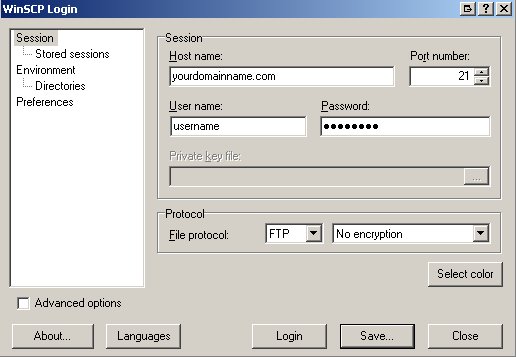
Uploading content is allowed only through FTPS on Port 21. Hence, besides File Protocol, you need to select FTP in the first dropdown menu and TLS Explicit encryption in the next.
Additional Information
FTPS - Confirm the entry as shown below.
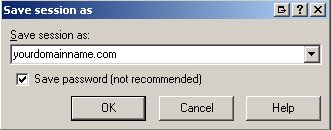
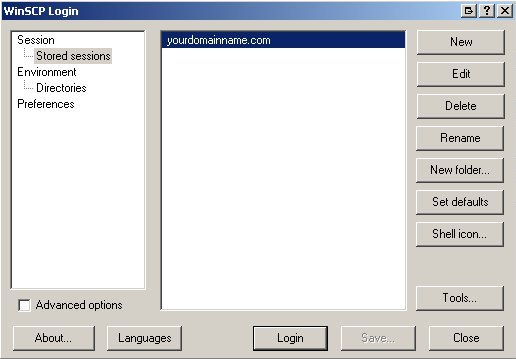
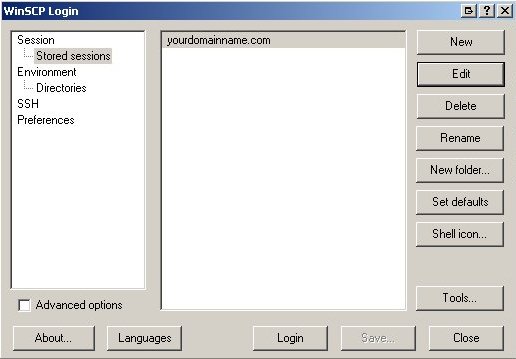
- In the Stored sessions section, select yourdomainname.com and click the Login button.
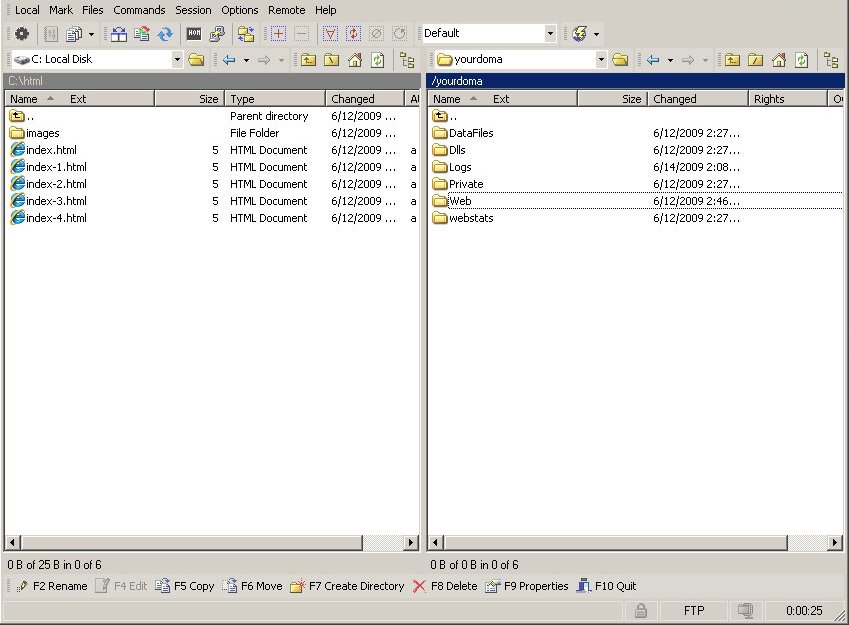
- Once connected, open the Web folder by double-clicking it.
 NOTE:
NOTE:
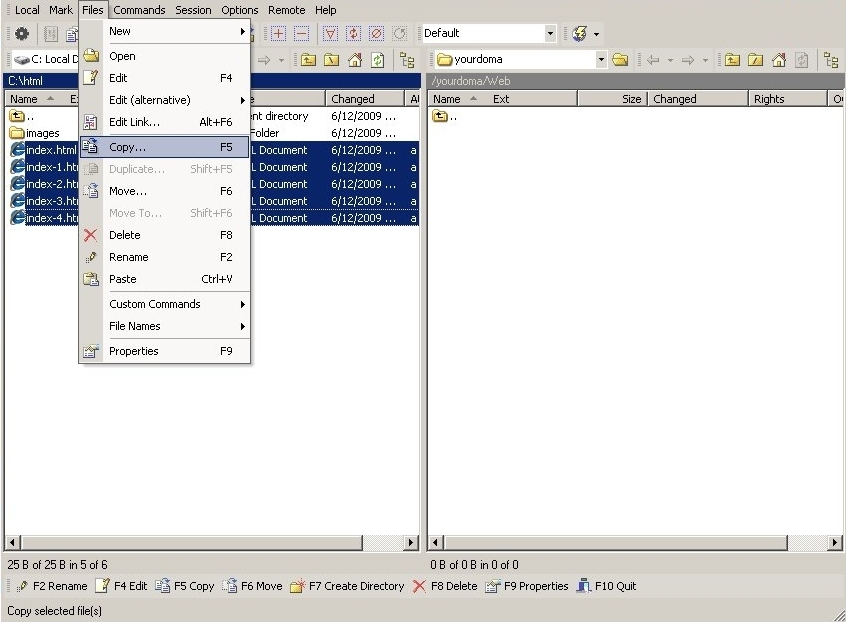
Depending on the directory/folder structure of the web hosting package, you will need to upload your files to the relevant folder. - Select the desired files in the left window and from the Files menu, click Copy.
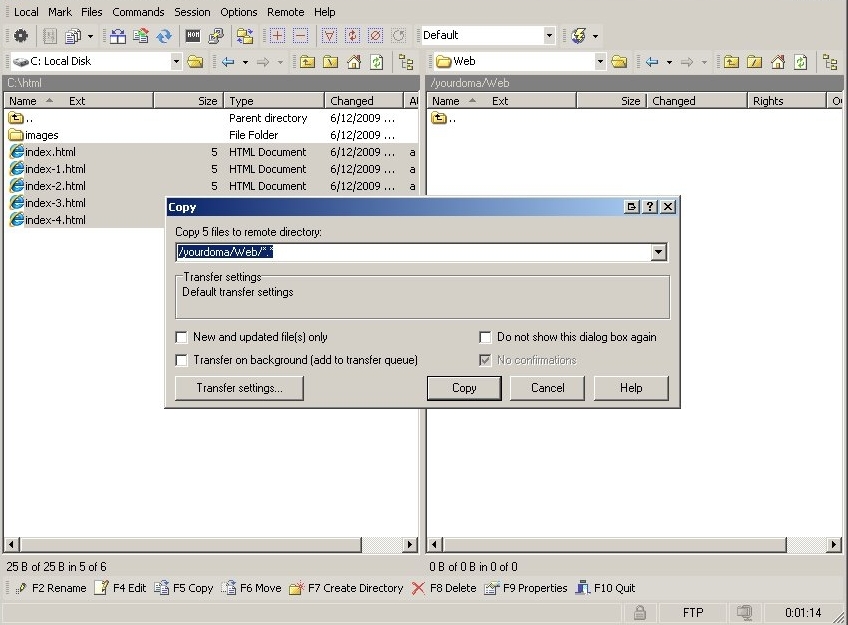
- Confirm the file transfer by clicking the Copy button.
The files will be transferred to the remote server.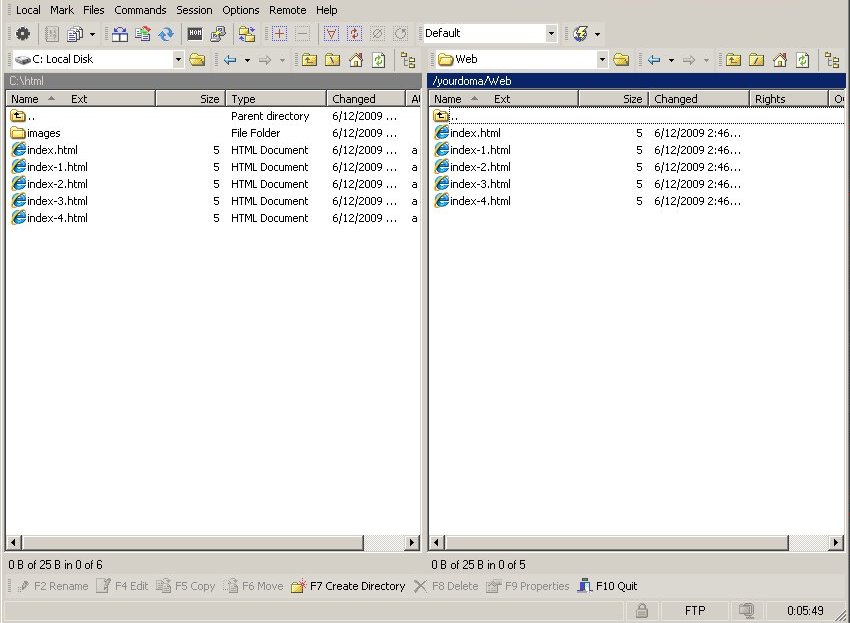
To Enable Active/Passive Mode FTP
Different modes of data connection can be used during FTP.
The data connection mode can be modified in the WinSCP client as follows:
- Under Stored sessions, select yourdomainname.com and click the Edit button.
- Select the Advanced options check box.
- By default, the data connection mode is set to Active mode. Click Connection and select the Passive mode check box.
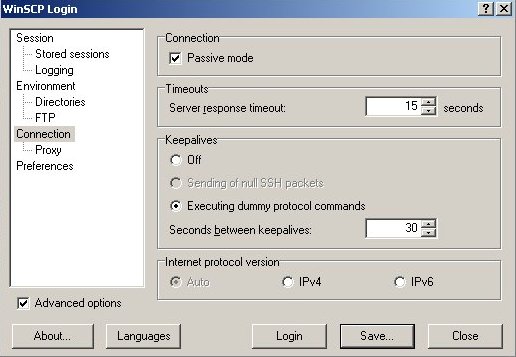
- Click the Save button. The change has been saved and is active for future FTP sessions on this site.
Did you find this article helpful?