Knowledge Base
How to Upload Website Files Using FileZilla FTP
When you want to transfer website files using FTP. This article explains how to upload website files using FileZilla FTP.
When you want to define which page loads first when someone visits your website. This article explains how to set the default website page in cPanel or Plesk.
When you want to transfer website files using FTP. This article explains how to upload website files using FileZilla FTP.
To Upload Content/Files Using FileZilla
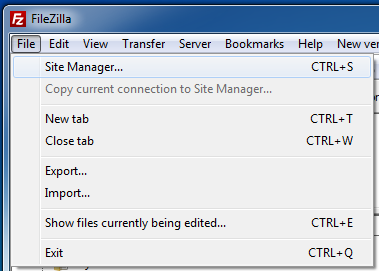
- Open FileZilla and choose Site Manager under the File menu.
- Click the New Site button.
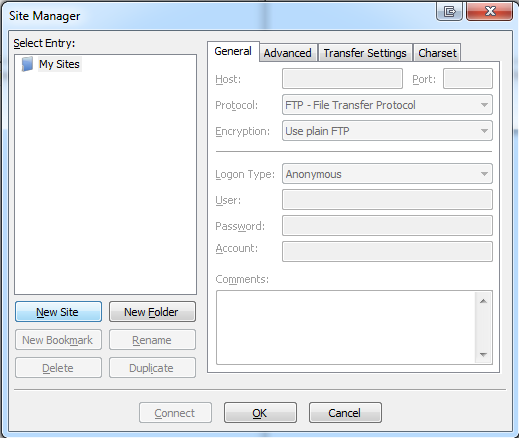
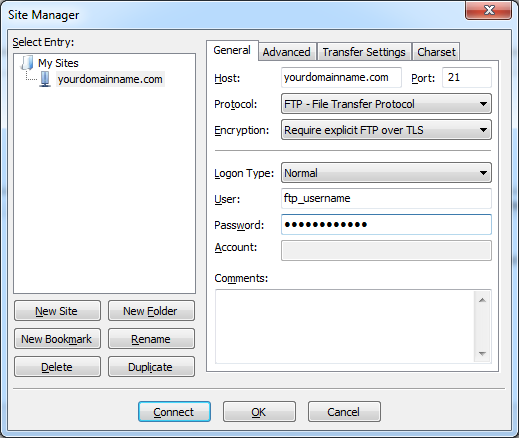
- Provide the following details, label the entry as yourdomainname.com, and click the Connect button:
- Host: yourdomainname.com
- Port: 21
- Protocol: FTP - File Transfer Protocol
- Encryption: Require explicit FTP over TLS
- Logon Type: Normal
- User: FTP Username for yourdomainname.com
- Password: Password for the above FTP User
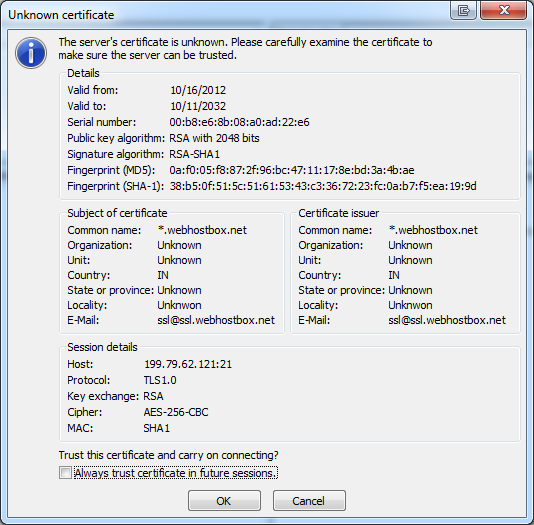
- Select the Always trust certificate in future sessions option and then click the OK button.
- Once connected, open the relevant folder by double-clicking it:
- cPanel - public_html
- Plesk - httpdocs
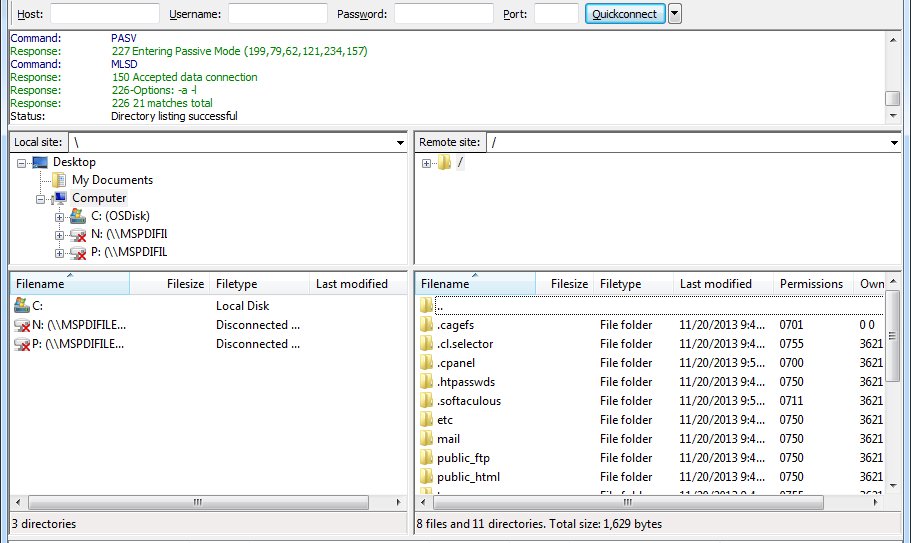 NOTE:
NOTE:
Depending on the directory/folder structure of the web hosting package, you will need to upload your files to the relevant folder. - In the left pane, select the files to upload. Right-click and choose Upload.
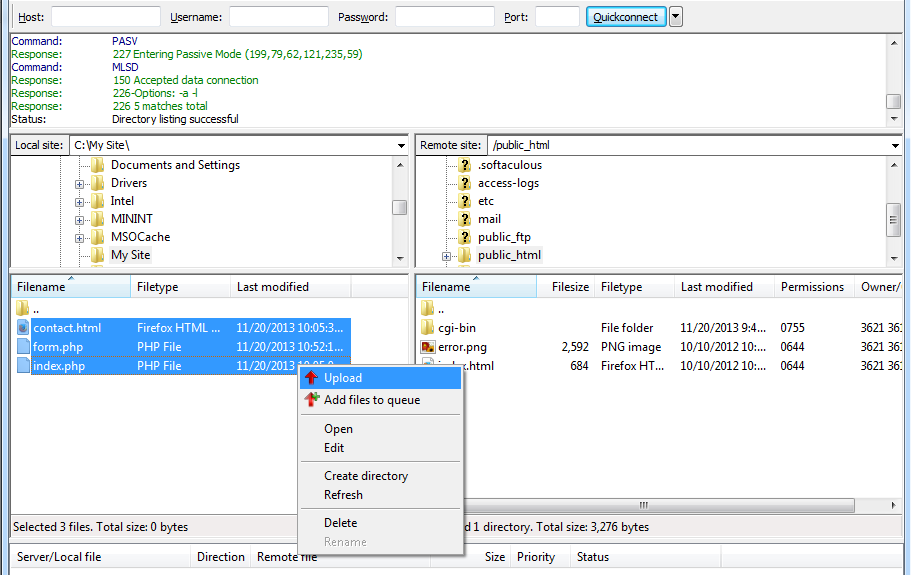
The files will be transferred to the remote server.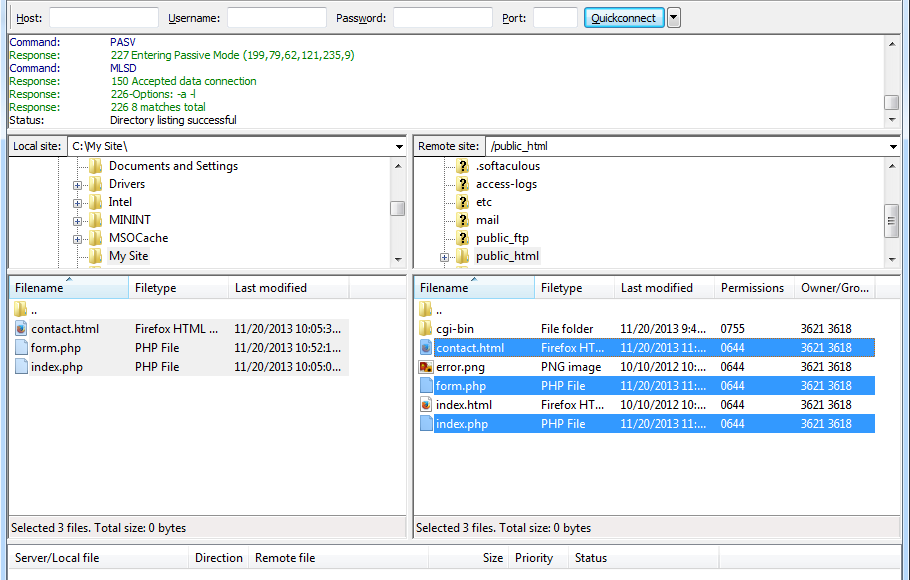
To Enable Active/Passive Mode FTP
Different modes of data connection can be used during FTP.
There are two ways in which the data connection mode can be modified.
Global Settings
- Choose Settings under the Edit menu.
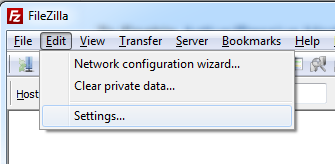
- The Passive mode for data connection is set by default. Under the Connection section, click FTP and select the Active radio button to enable the Active mode.
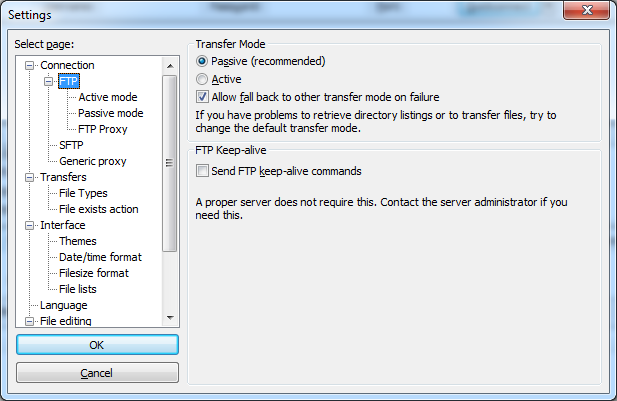
- Click OK to save the changes. This change will affect all the sites for which the data connection mode was set by default.
For Individual Sites
- Choose Site Manager under the File menu.
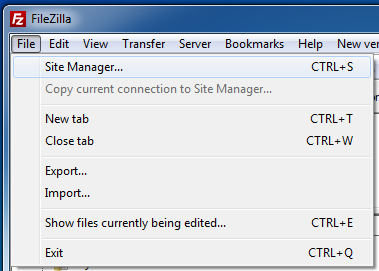
- Select yourdomainname.com and click the Transfer settings tab. Here, you can change the data connection mode to Active or Passive.
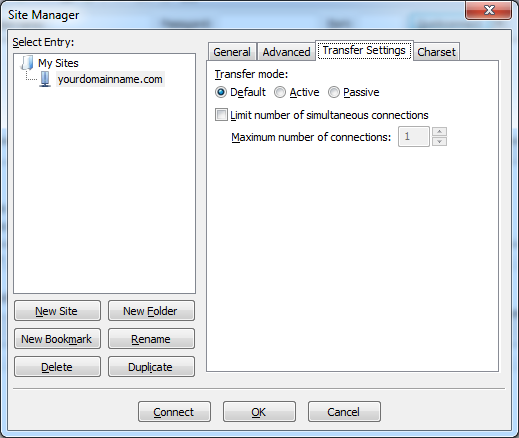
- Click OK to save the changes. The change has been saved and is active for future FTP sessions on this site.
Did you find this article helpful?