

WordPress powers over 43% of websites across the globe, making it one of the most popular Content Management Systems out there. If you have chosen website hosting VPS for your site, you are already on the right track. A VPS server gives you dedicated resources, better speed, and full control over your hosting environment.
The only question now is how to get WordPress up and running on it. This guide will walk you through the complete process in simple, easy-to-follow steps.
Before You Begin: Purchase Your Domain and VPS
The first thing you need to do is buy a domain name and a VPS hosting for WordPress plan. Once you have purchased both, they will appear in your hosting control panel. From there, you can access your Server Management Panel, WHMCS, and cPanel all in one place.
When purchasing your VPS plan, you will be asked if you want to add a control panel. Options like cPanel and Plesk are available as add-ons. Choosing one makes the WordPress installation process much easier, especially if you are not very comfortable with the command line.
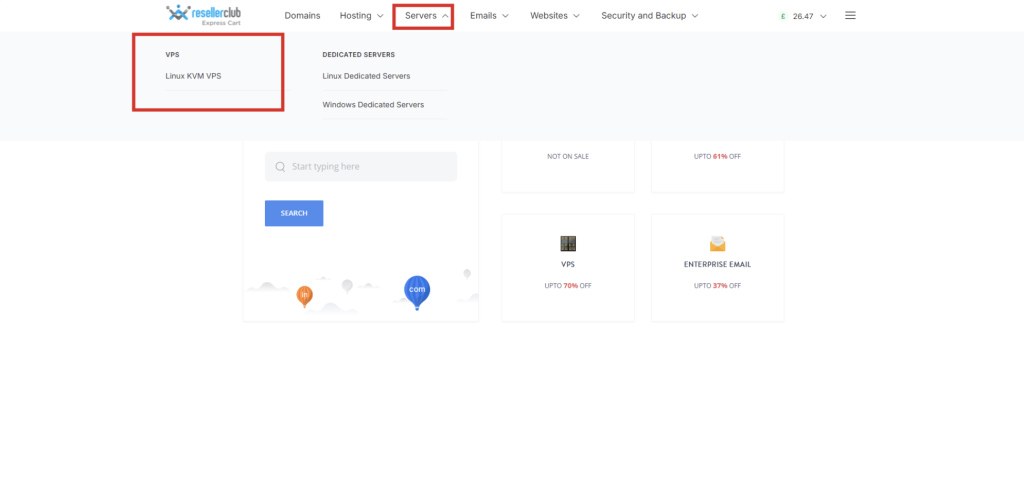
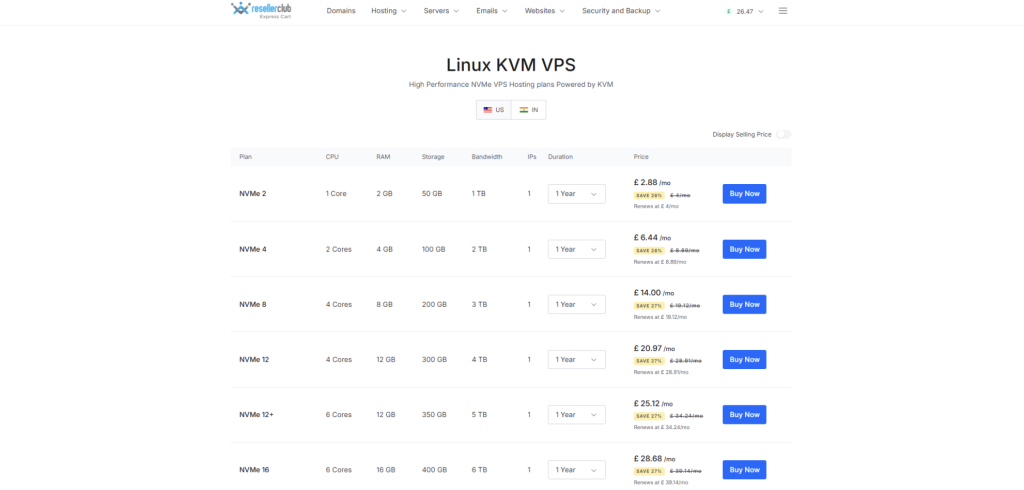
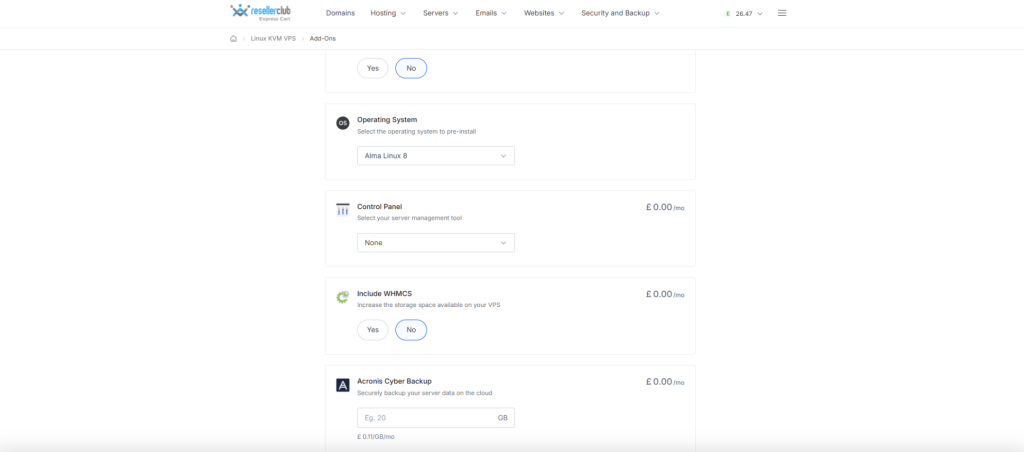
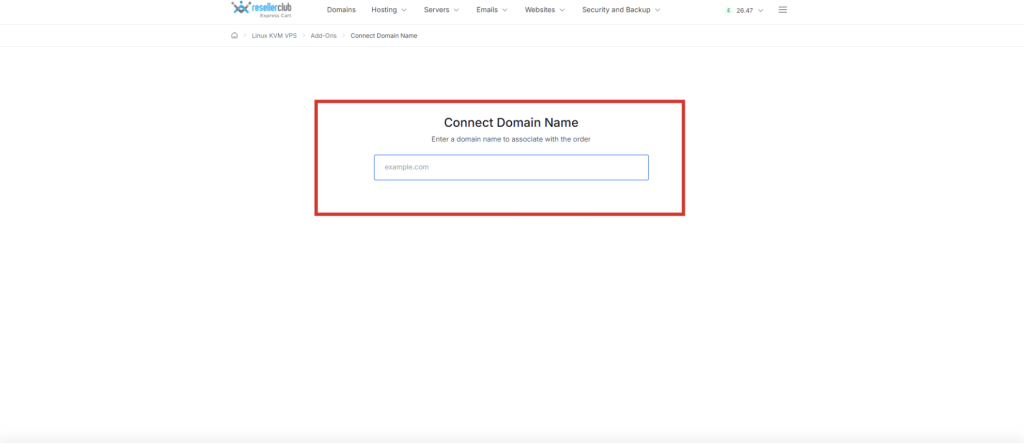
Simple Steps to Install WordPress on VPS Hosting
Method 1: Install WordPress on a VPS Using a Control Panel
If you added cPanel, you can use Softaculous to install WordPress with just a few clicks.
Step 1: Enable ionCube Loaders in WHM
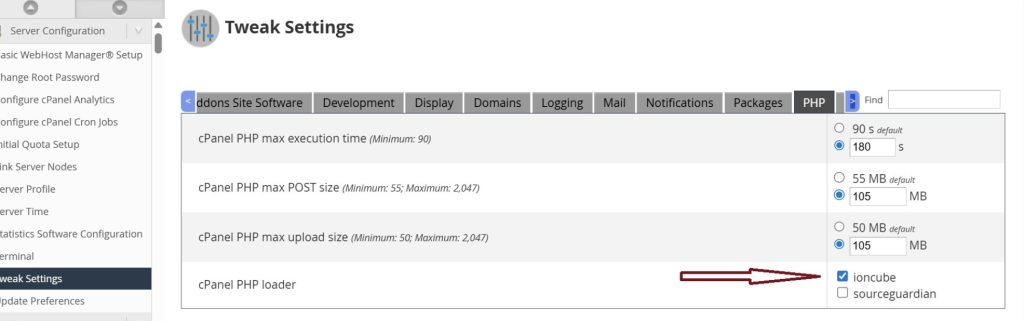
Before installing Softaculous, you need to enable ionCube Loaders first. To do this, log into WHM and go to Server Configuration, then Tweak Settings. Click on the PHP tab, select IonCube, and hit Save.
Step 2: Install Softaculous
Softaculous does not come pre-installed on WHM, so you need to add it manually through remote access. If you are on a Linux system, open your terminal directly. If you are on Windows, download and install a free tool called PuTTY from its official website. PuTTY lets you run Linux commands from a Windows machine. Once you are connected to your server, run the following commands one by one:
- Fetch the installation files: wget -O install.sh https://files.softaculous.com/install.sh
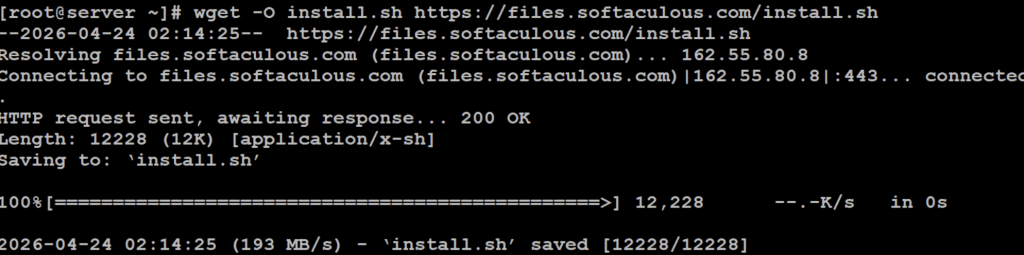
- Change access permission: chmod 755 install.sh
- Run the installer: ./install.sh
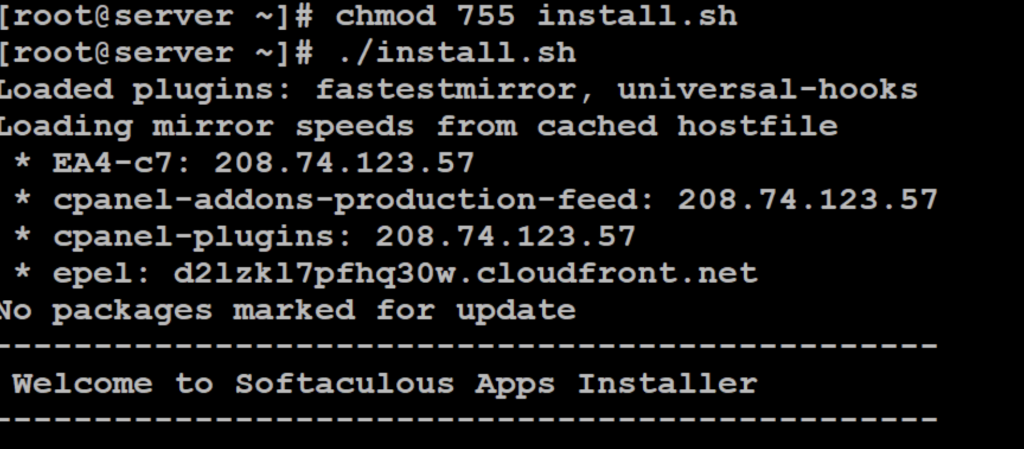
Wait for the message that says Softaculous was installed successfully. After that, log in to WHM and check under Plugins to confirm it is there.
Step 3: Install WordPress Through Softaculous
Go to the Softaculous dashboard and search for WordPress. Click on the icon and then go to the Install tab. Fill in your domain name, preferred language, and other basic details. Click Install at the bottom, and your VPS WordPress site will be ready in minutes.
Method 2: Install WordPress on a VPS Without a Control Panel
If you did not add a control panel, do not worry. You can still install WordPress manually in four steps.
Step 1: Create a Database
Connect to your server using PuTTY (Windows) or your terminal (Linux) via SSH. Once logged in, run the following commands to set up a MySQL database:
- Open MySQL command line first using command: mysql
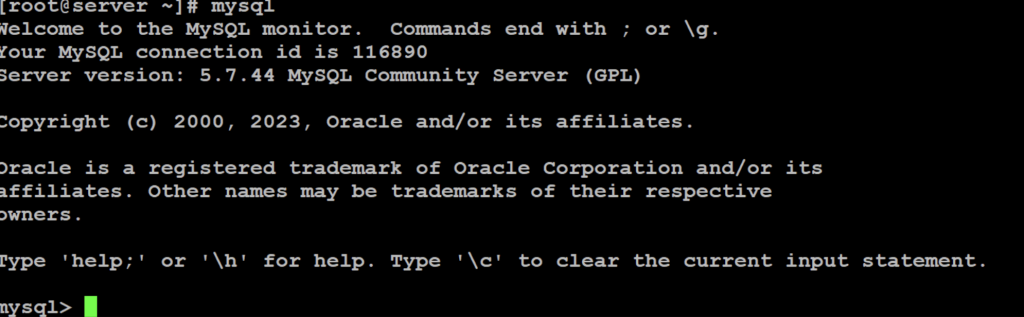
- Create a database: CREATE DATABASE wordpressdb;
- Create a user: CREATE USER ‘dbuser’@’localhost’ IDENTIFIED BY ‘your_password’;

- Grant access: GRANT ALL PRIVILEGES ON wordpressdb.* TO ‘dbuser’@’localhost’;

- Apply changes: FLUSH PRIVILEGES;

- Exit mysql command line with :
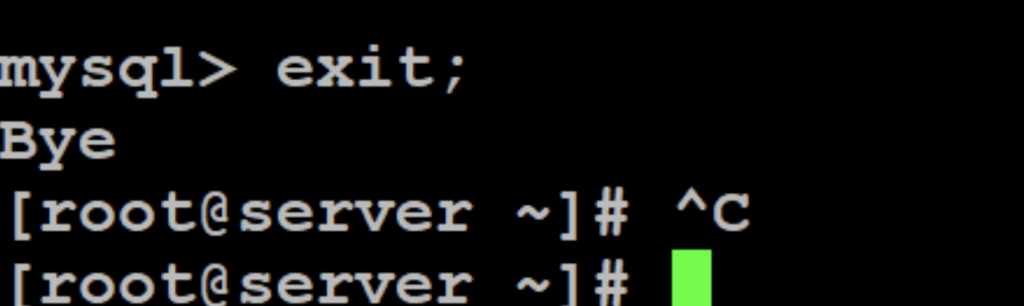
Before running the scripts, you need to make sure that you have replaced the example database name, username, and password with your own, unique settings.
Step 2: Download WordPress
Navigate to your website’s root directory using the cd command. Then run these two commands to download and extract WordPress:
- Enter the path where you want to install wordpress , generally the document root of domain with command : cd path_to_wordpress
- Download: wget http://wordpress.org/latest.tar.gz
- Extract: tar -xzf latest.tar.gz
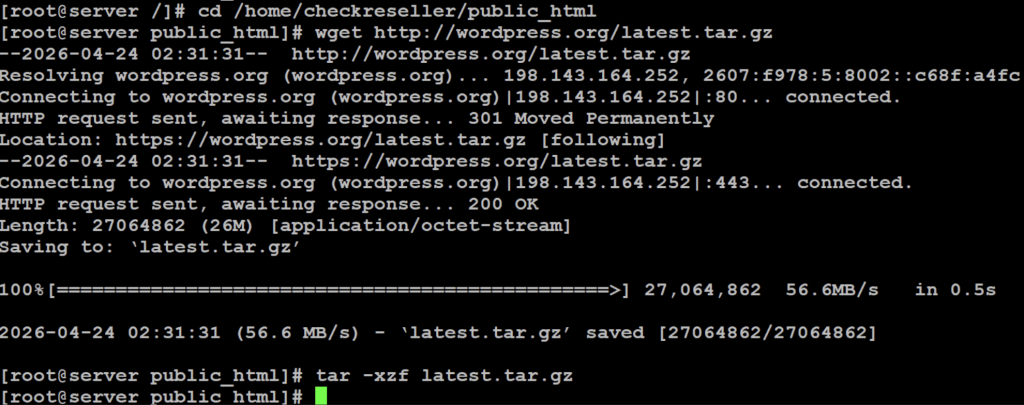
This will create a WordPress folder inside your root directory. If you want to install it on your main domain, move all the files from that folder to your root directory using the mv command.
Step 3: Edit the Configuration File
Rename the sample config file to wp-config.php. Then open the file and update the fields for DB_NAME, DB_USER, DB_PASSWORD and DB_HOST with the database details you created in Step 1.
- mv wp-config-sample.php wp-config.php
Use editor of your choice , in this example I am using Vi editor, you may use file manager if you wish to use :
2. vi wp-config.php ,
3. make changes and save with :wq!
If you prefer not to do this manually, you can skip this step and let WordPress configure the file automatically when you run the installation script.
Step 4: Run the Installation Script
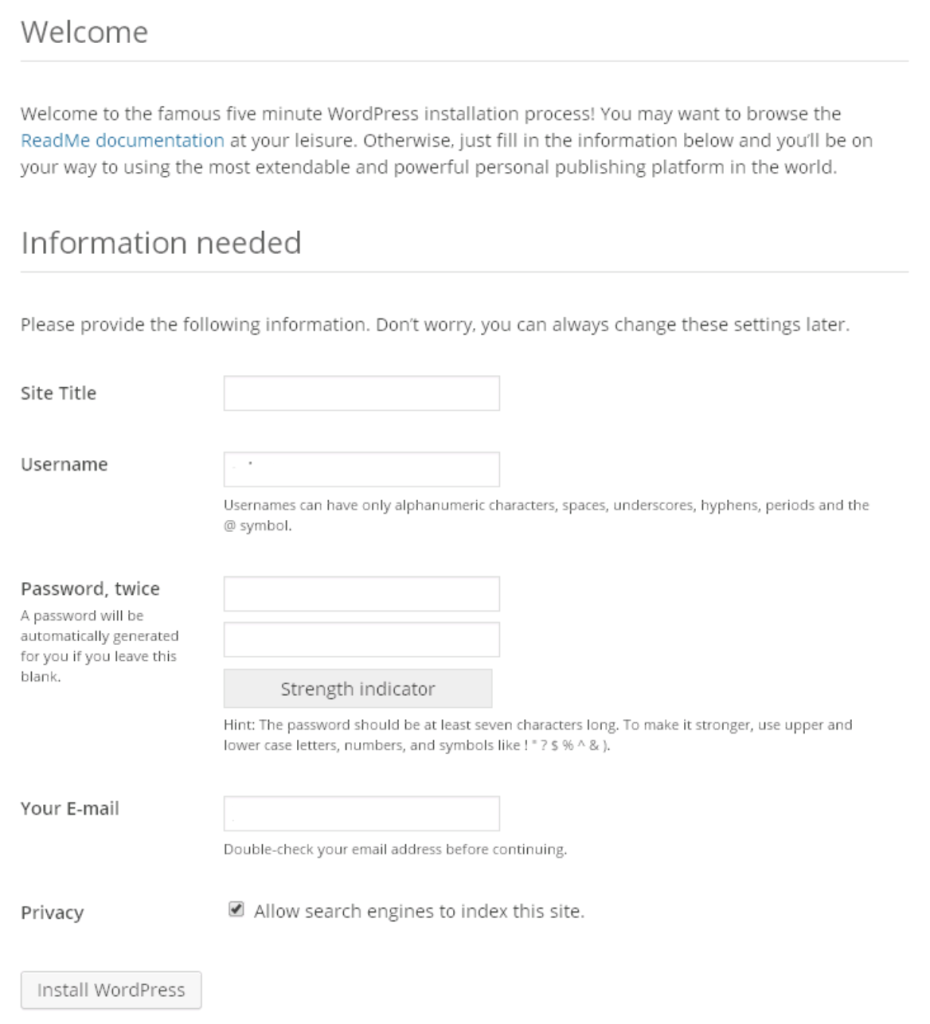
Open your browser and visit http://yourdomain.com/wp-admin/install.php. Fill in your site title, admin username, password, and email address. Click Install WordPress, and you are done. Your WordPress VPS hosting setup is now complete.
Wrapping Up
Setting up VPS WordPress hosting may look complicated at first glance, but once you break it down into steps, it becomes very manageable. Whether you use a control panel like cPanel or go the manual route, both methods get the job done well. The performance, speed, and control you get from a VPS hosting make it well worth the setup effort.
Reseller Club Hosting Services
Reseller Hosting | Windows Reseller Hosting | Cloud Hosting | VPS Hosting | Managed VPS Hosting | Dedicated Server Hosting | Windows Dedicated Server | Managed Dedicated Server | Linux Shared Hosting | Windows Shared Hosting